Chrome Click to Dial extension
This chrome extension makes links within any web page click to dial with the Hosted Voice platform. When you hover over those links, it gives a choice to either make a WebRTC call or a call from your own desktop phone to the destination on that page.
Installing the Vodia chrome extension
In chrome, go to settings, then extensions. Click on "Get more extensions" at the bottom which will take you the chrome webstore. In the chrome webstore, search for
Vodia click to dial. Once you find it, add it to chrome. After some time, it will say extension added to chrome. The vodia icon will appear in your extensions list, usually at the top right of your chrome browser.
How to connect your extension to your pbx
Click on the Vodia icon of the extension. A pop up window will appear as shown below:
In the
Pbx Url field, you will need to enter your PBX URL. Make sure that it is a https URL and not a http one.In the
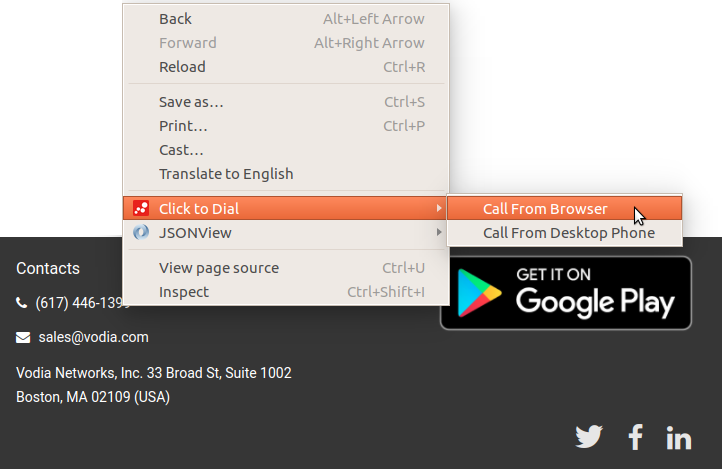
Account field, you have to enter your extension in this format - {extension@pbx_url}Now when you go to a page which has phone numbers (especially starting with a + sign), the extension will make links for click to dial. When you right click over these numbers(as opposed to hovering over them as it was in the previous versions), it will give you two options. One option is to make a WebRTC call within the browser, using the system's mic and speaker, and the other option is to make a call from your desktop phone. Of course the desktop phone must be registered to your account as well, the same account that you entered in the extension settings above. These options appear in the following form as shown below:
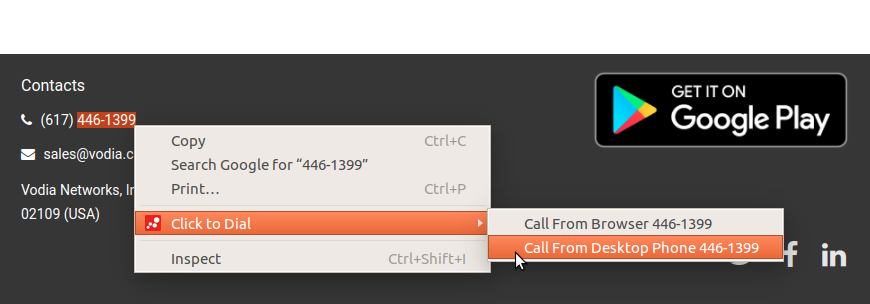
Also, you can now select a portion or the part of the phone number and then dial those via the same method as explained above. This sits well with the users who have country and the area code set in their domain and don't appreciate changing their dial plans for making calls. Here is how it can be done: